When you purchase through the links on my site, you support the site at no extra cost to you. Here is how it works.
When you need a vocal, synth, drum loop, or other sound to suddenly change direction, ordinary automation can become a lot of work.
Stutter Edit 2 is built for those short moments, letting you chop, repeat, pitch, filter, distort, and reshape incoming audio as a single playable gesture. It seems to work great for arrangement details than everyday mixing. A two-bar transition, a chopped vocal ending, or a rhythmic fill can take only a few moves here, whereas building the same effect manually would mean several edits, automation lanes, and plugins.
Gestures and Auto Mode
The main idea is simple: a Gesture contains a complete sequence of changes that you can trigger from MIDI or from the DAW. One gesture can control stuttering, buffer movement, pitch, filtering, stereo effects, and other parameters while the audio is passing through.
Auto Mode is useful when I’m searching for an effect because I can audition gestures against the track without first setting up a controller. MIDI Mode makes more sense when you want to perform the effect, whether that means triggering a fill from a keyboard or switching gestures from a controller.
- Gestures
A single Gesture can combine rhythmic edits, pitch changes, filters, and effects, so you do not have to automate each part separately.
- Auto Mode
You can audition gestures directly from the timeline, which makes it quick to find a starting point.
- MIDI Mode
Trigger effects from a keyboard or MIDI controller when the timing needs to respond to your performance.
Stutter and Buffer
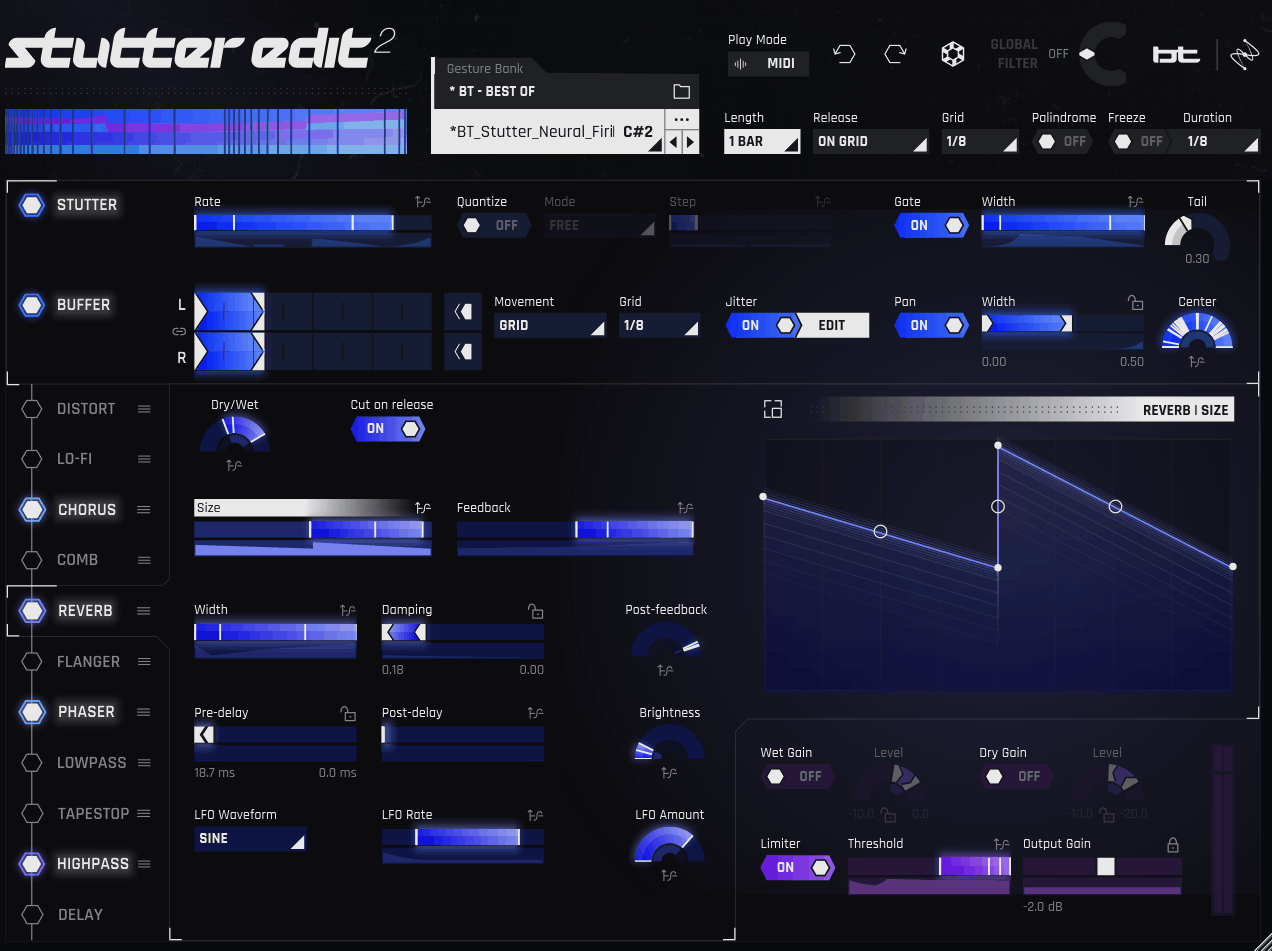
The stutter section controls how the captured audio is repeated, with tempo-synced divisions that can turn a phrase into anything from a recognizable rhythmic repeat to a very dense machine-like texture. Gate and Tail controls help decide how abruptly those repeats start and stop.
The Buffer section is what keeps the effect from becoming just another repeat plugin. Here, you can change which part of the captured audio gets played, reverse it, offset the channels, and introduce timing variation, so the repeated material itself can keep changing.
I find that especially handy on vocals and short synth phrases. Instead of repeating the same syllable or note over and over, you can move through different parts of the source and make the effect sound more like an edit than a loop.
- Stutter rate
Use faster divisions when you want tight rhythmic repeats, and slower divisions when the effect needs to remain easier to follow.
- Buffer position
Move through the captured audio to find different syllables, transients, or waveform sections without changing the source track.
- Reverse and jitter
These controls add direction changes and small timing variations, which can stop a repeated phrase from sounding too mechanical.
Time-Variant Modulation
The Curve Editor is where the deeper sound design happens. You can draw individual modulation curves for many parameters, so a gesture does not have to move everything at the same speed or with the same shape.
That gives you much more control over the progression of a transition. I might have the filter open early, bring distortion in near the end, and make the stutter accelerate across the final beat instead of having every effect peak together.
For me, this is where the plugin becomes much more helpful than a basic glitch effect. The rhythm, tonal change, and effects can all evolve as part of one timed event, which is exactly what I need when a transition has to feel deliberate.
Effects
The effects section covers the main tools you would expect for this kind of processing, including distortion, chorus, phaser, flanger, comb filtering, reverb, stereo delay, lo-fi processing, and tape-style effects.
You can use these effects independently or make their parameters move with the same gesture. A little reverb at the end of a stutter can push the sound away from the dry mix, while distortion can make the final repeats feel more aggressive.
I usually keep the processing fairly restrained until the underlying edit works. If the stutter itself does not sound good, adding more effects usually makes the problem harder to hear rather than actually fixing it.
- Distortion and lo-fi
It’s helpful for making the repeated material rougher, smaller, or more aggressive as the gesture develops.
- Reverb and delay
Give the processed audio space and decay, which works particularly well on vocal endings and transitions.
- Comb, phaser, and flanger
These add moving resonance and modulation, helping repeated material sound less static.
- Tape-style effects
Can be handy when you want a stop, slowdown, or degraded transition rather than another conventional rhythmic repeat.
Presets and Sound Design
There are plenty of factory gestures to browse, and I think they make more sense as starting points than finished sounds. The source matters so much that the same gesture can behave very differently on a vocal, bassline, drum loop, or synth, so I would not judge one from a single example.
When I find something close, I usually strip it back. Turn off an effect, change the stutter rate, move the buffer, or reshape one curve and listen to what actually changed.
That process teaches you the instrument faster than simply stepping through presets. Once you understand which part of a gesture creates the movement, you can rebuild that idea around your own material.
Where I Use It Most
Stutter Edit 2 is at its best when a normal part needs to become a short arrangement event. I use it for vocal chops, drum fills, synth transitions, risers, breakdown details, and the last word of a phrase when I want it to dissolve instead of simply stopping.
Vocals are especially easy to work with because a single syllable can provide enough material for an entire gesture. On synths and drums, the buffer gives you a way to turn a small piece of audio into something rhythmic without creating a separate edited clip.
- Vocal transitions
Turn a final word or syllable into repeats, pitch movement, filtering, and effects without manually slicing the audio into every hit.
- Drum and synth fills
Use stutters and buffer movement to create short rhythmic changes before a drop or section change.
- Sound design
Longer gestures can turn ordinary recordings into rises, impacts, glitches, and evolving textures.
A Practical Workflow
I usually start with the source and decide what needs to happen to it. A vocal might need to disappear into the next section, while a synth may only need a one-beat rhythmic interruption.
Once I know the job, I audition gestures in Auto Mode and choose one with the right basic movement. Then I simplify it before adding anything else, because most presets contain more processing than I actually need for a mix.
After that, I use the Curve Editor to control when the important changes happen. You can make the stutter arrive late, bring in the reverb only for the final repeat, or let the pitch movement build across the whole gesture.
- Start with useful source material
Choose audio with a clear transient, phrase, or sustained element that will still make sense after being repeated.
- Build the rhythm first
Get the stutter rate and buffer movement working before adding heavy effects.
- Stagger the changes
Let different parameters arrive at different times so the transition develops instead of peaking all at once.
- Keep some original identity
Leave enough of the source recognizable that the processed section still connects to the arrangement.
Auto Mode, MIDI and Performance
Auto Mode is probably the fastest way to use the plugin in a normal production session. You can audition gestures in time with the arrangement and find one that fits before deciding whether it needs any deeper editing.
MIDI Mode changes the workflow because you can perform gestures instead of placing them only at predetermined points. I’ve found that useful for live electronic sets and for recording transitions that respond to the energy of the performance rather than following a fixed automation lane.
This also makes the plugin useful beyond traditional stutter effects. A controller can become a way to improvise fills, vocal glitches, rhythmic edits, and transition moments while the rest of the arrangement keeps running.
Pros
- Gesture-based workflow
Complex rhythmic edits can be triggered as one complete event, which saves a lot of manual editing and automation.
- Deep buffer control
Stutter, buffer position, reverse, and timing controls let you rearrange the source itself, rather than relying only on added effects.
- Detailed modulation
Individual curves give you control over when and how different parts of the gesture develop.
- Useful for many sources
You can use it on vocals, synths, drums, bass, loops, and sound-design material, so it is not restricted to one genre or instrument.
Where It Falls Short
Also, it’s important to discuss drawbacks as well. Once you start building your own gestures, the amount of control can slow things down. Several parameters can have their own curves and timing, so creating a very specific effect takes more time than loading a preset and tweaking a few controls. That extra depth is useful, but you need to be comfortable with the Curve Editor before the workflow feels quick.
The interface can also feel dense, especially when you’re editing several curves at once. I find it easier to work with on a larger display, while smaller screens make precise adjustments more fiddly.
Another limitation is the plugin’s focus on short events. Gestures are designed around brief rhythmic and transitional moments, so Stutter Edit 2 is not the tool I’d reach for when I want a long, evolving effect or general-purpose audio processing.
On the flip side, that specialization is part of why it works well at what it does. You are better off treating it as a dedicated tool for stutters, glitches, fills, transitions, and rhythmic edits rather than expecting it to replace a conventional multi-effect plugin.
Verdict
Stutter Edit 2 is most useful when you need a sound to change dramatically for a short, specific moment. I would reach for it before opening a long chain of plugins when a vocal, synth, drum, or other part needs to stutter, reverse, shift, filter, and expand into the next section.
The biggest reason to keep it around is the relationship between the Gesture system, buffer editing, and individual modulation curves. You can start with a preset, remove the parts you do not need, and then shape the remaining movement around the exact moment in your arrangement.
If you mainly produce music where transitions, vocal edits, rhythmic glitches, and sound-design moments are part of the arrangement, there is a lot of practical value here. If those situations rarely come up, the depth can become overkill rather than an advantage, and a simpler tool will probably get you where you need to go faster.
Hey, I’m Vil, I started this site to help you find the best audio plugins covering various categories including synths, pianos, strings, and effect tools of all sorts as well. I pick these plugins based on various criteria so it best matches the actual topic.